

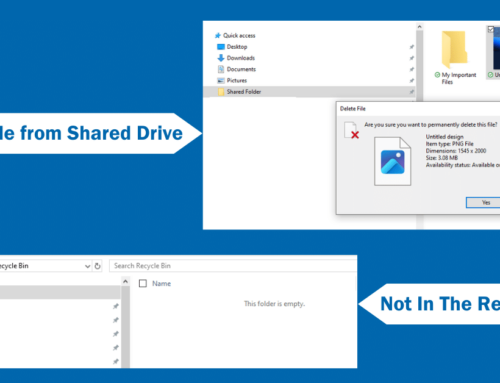
When files are deleted from a network shared folder, they usually don’t go to the Windows Recycle Bin, and for many users, that comes as a surprise. The short answer is that the files are immediately removed from the server, which is why they often seem to disappear.
This article explains what happens when files are deleted from a network shared folder, where those files actually go, and what recovery options are available.
For a deeper explanation of why Windows behaves this way, see:
Why Deleted Files from Network Shares Don’t Go to the Recycle Bin
Is There a Way to Recover Files Deleted From a Network Share?
Once files are deleted from a network share, they are no longer recoverable from the shared folder or the user’s local system.
In some cases, recovery may be possible by restoring an earlier version from backup. This method is unreliable and depends on several factors:
-
A version of the file was backed up
-
The file name is known
-
The approximate time and date of the last save is known
Even when successful, restoring from backup is time-consuming and any work done since the last backup is permanently lost.
The Reliable Method to Recover Files Deleted from Network Shares
Windows does not include a native way to protect files deleted from network shares. To reliably recover files deleted from shared folders, organizations use solutions designed specifically for Windows file servers.
Undelete Server from Condusiv Technologies acts like a network recycle bin by capturing files deleted from network shares and storing them in a Recovery Bin for instant restore.
Here are the steps to test it out for yourself (if you are an admin):
- Download and install a free 30-day trial of Undelete Server on your File Servers. It’s fast and easy. You don’t even need to do a server reboot.
- Undelete will replace the Windows Recycle Bin with the powerful Undelete Recovery Bin. It captures all deleted files: files deleted from network shares, files deleted between backups, and files deleted from the Command Prompt and Applications.
- Test steps:
— Create a test file within a network drive shared folder.
— Now delete it.
— Check the server. You’ll see that your file has disappeared from the server as well.
— Open the Undelete Recovery Bin.
— Easily navigate to the shared folder from which you deleted the file—and there you’ll find it again! You can also use a bunch of different search functions to easily find the deleted file.
— Recover it. Select that file and recover it back to its original location, or even to a new location. - That is how easy it is!
Summary: What Happens to Files Deleted from Network Shares
- Files deleted from network share are gone – poof!
- You might get lucky and recover an earlier version of the file from backup.
- Undelete captures all files deleted from network shares and saves them in the Recovery Bin for reliable, instant file recovery.
- You can try it out for yourself for free.
Originally published March 2021.
Updated January 2026.




Leave A Comment
You must be logged in to post a comment.